Title here
Summary here
We offer the possiblity of synchronizing one or more remote directories with the local desktop. This is done with the Syncthing software. In order to use it you will need to install it in your local desktop. It is already installed and running in the remote Darkroom server so you do not need to do that step.
You can find downloads for the different operative systems from the Syncthing Downloads page. Select the appropriate package and install it.
The configuration will require to perform actions both in the remote server and local desktop. It is documented in Syncthing Getting Started but we give here a quick summary. Please refer to the original guide for any issue.
The actions to be carried out in the remote Darkroom server will have a blue background.. The actions to be carried out in your local desktop will have an orange background.
The first step is to connect the remote server with your local desktop (known as devices) and make sure they know about each other. This is usually referred to as Pairing.
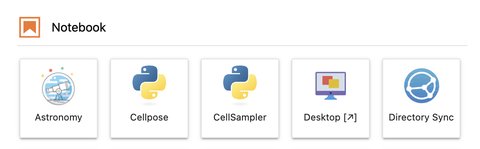
To start select the panel Directory Sync from the JupyterLab launcher.
This will open a interface like the one below:
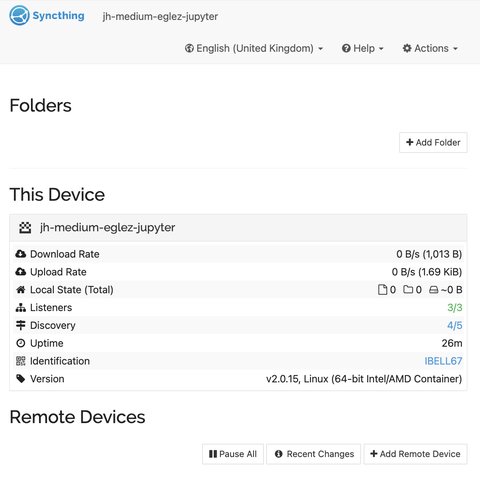
Select Actions in the top left menu and Show ID. This will display the remote device ID that will be used to pair this device with your local desktop.
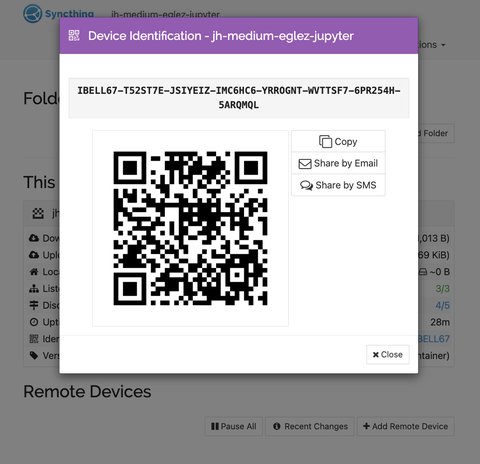
Copy the device ID. This will be used in the next step.
In your local desktop open the Syncthing configuration, and at the bottom of the page click on Add Remote Device.
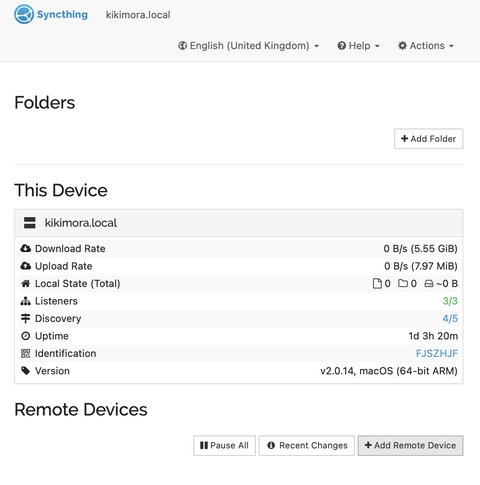
Use the device ID from the previous step in the new pop up window.
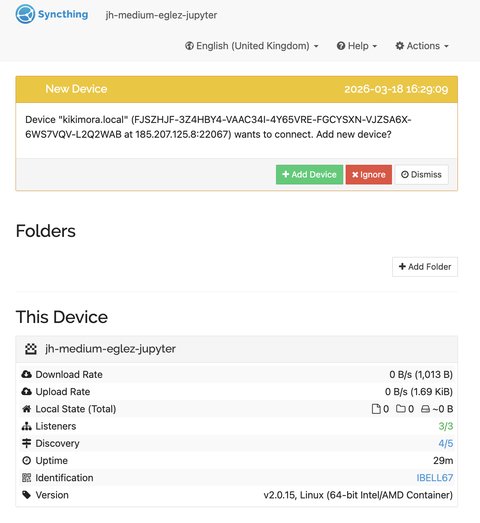
Back to the Darkroom server, you will see a notification to add the your desktop as a new device. Click Add Device.
You will see now at the bottom of both the local and remote interfaces that the devices have been added and are Connected.
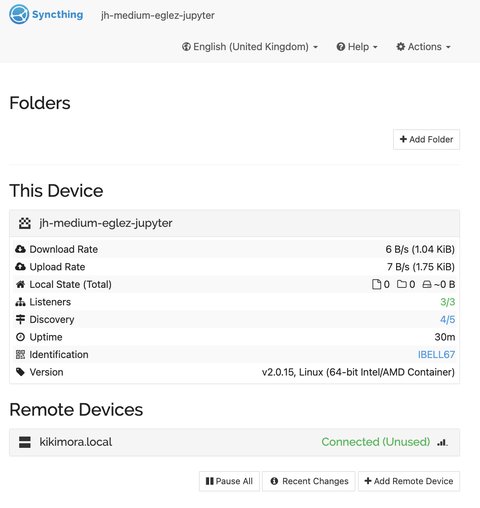
At this point both remote server and local desktop are paired and ready to share folders between each other.
In the Darkroom server click on Add Folder. In the new popup window tyep a label and the path to the folder to share.
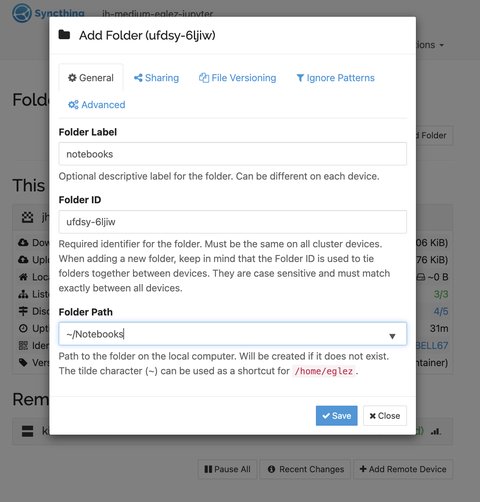
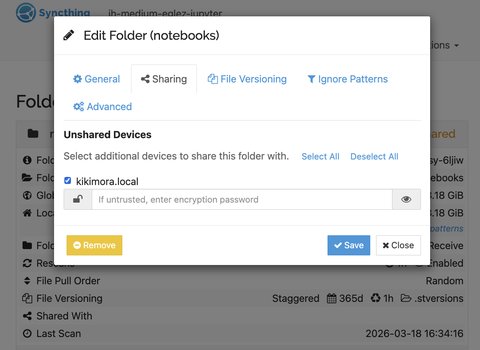
In the Sharing tab select to share with your local device.
In your local desktop configuration you will get a notification that a folder has benn shared.
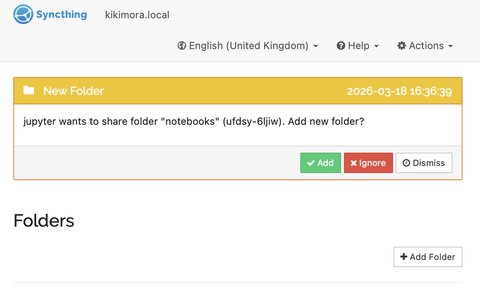
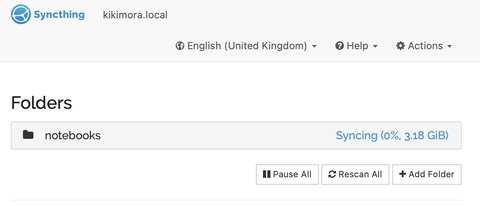
Click on Add Folder and select the path were the synced directory will be located. After a delay the directory will start syncing from the remote server to the local desktop.
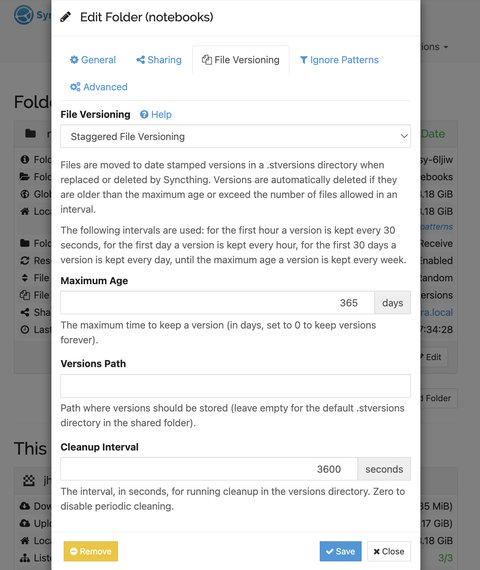
The Ignore patterns tab can be used to skip sync of certain files. In the example below, large image files are not synced.
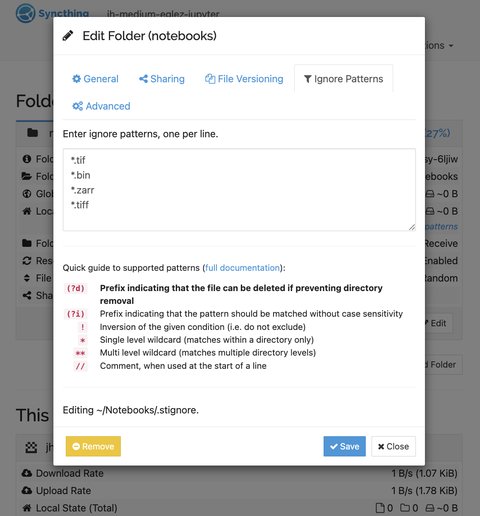
This to be done in both remote and local configurations.