Title here
Summary here
You can use Visual Studio Code to access the remote machine from your desktop, including accessing files, running command line scripts and editing and executing Jupyter notebooks.
The Visual Studio Code Remote - Tunnels extension lets you connect to the remote server via a secure tunnel.
The procedure is described in detail in Developing with remote tunnels but we provide here a summary.
The first thing to do os to start the tunnel in the Darkroom server. For this open a terminal and type:
code tunnelFollow the instructions to setup the connection.
In your desktop computer launch Visual Studio Code and install the Remote tunnels extension.
Once you install the extension, open the Command Palette (F1) and run the command Remote Tunnels: Connect to Tunnel. You’ll be able to connect to any remote machines with an active tunnel.
You can also view your remote machines in the Remote Explorer, which you may focus on through the command Remote Explorer: Focus on Remote View
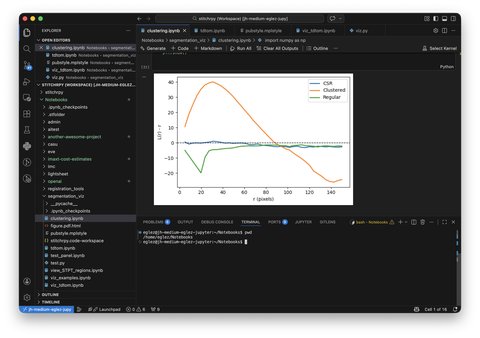
The figure below shows then end result of Visual Studio Code running on your desktop, connected to the remote server. It shows a remote Jupyter notebook opened for editing and running and a remote terminal to run commands.