Title here
Summary here
A remote desktop is started at the same time that a JupyterLab session starts for each user. It can be accessed either from the browser or from a VNC client.
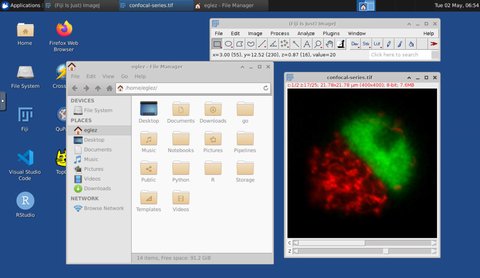
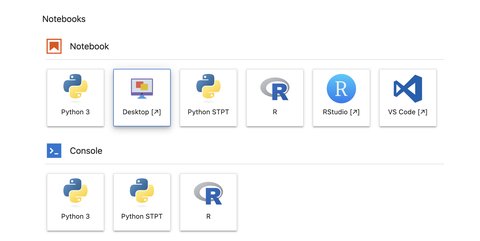
The remote desktop can be accessed from any web browser. In JupyterLab access the Launcher and click on Desktop.
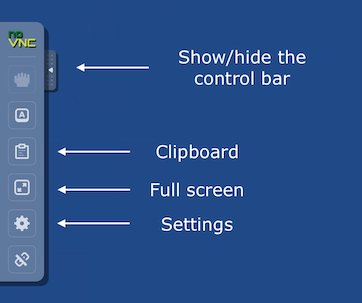
In order to access the remote desktop using a VNC client you will need to set up access command line access to the cluster. The VNC client provides slightly better quality and performance, otherwise the browser is suitable for most of the applications. This is described in the advanced section.
If your JupyterLab session has access to a GPU, this can be used for display applications. The graphics cards that we have support the OpenGL specification standard.
In order to make the card avaiable to the application, launch a terminal and prepend the command used to launch said application with vglrun.
In order to find out if a GPU is avaiable use the command nvidia-smi.
More detailed information about the GPU can be obtained with glxinfo:
vglrun glxinfo | grep OpenGL
OpenGL renderer string: Tesla V100S-PCIE-32GB/PCIe/SSE2
OpenGL core profile version string: 4.6.0 NVIDIA 495.29.05This is described in Using Napari.
QuPath can be run executing the command /soft/local/QuPath/bin/QuPath.sh
in a Terminal or double clicking the QuPath icon on the Desktop.
FiJi can be run executing the command /soft/local/Fiji.app/ImageJ-linux64 in
a Terminal or or double clicking the FiJi icon on the Desktop.
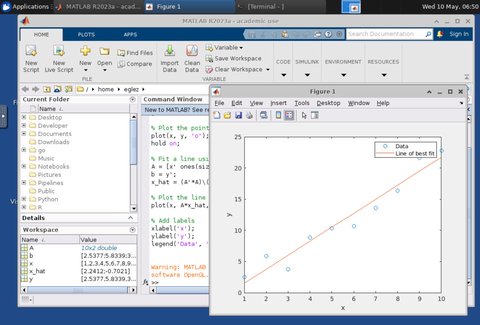
In order to run MATLAB in the virtual desktop you will need a personal license (all Cambridge University members can request one) and additional setup. Contact the support team for further instructions to run it.